 DoubleEntry
Guide · 2
Accounts
Accounts are the buckets your money moves between. This page shows how to create them, how to number them so the reports work out, and how to check them against the bank.
The Accounts tab
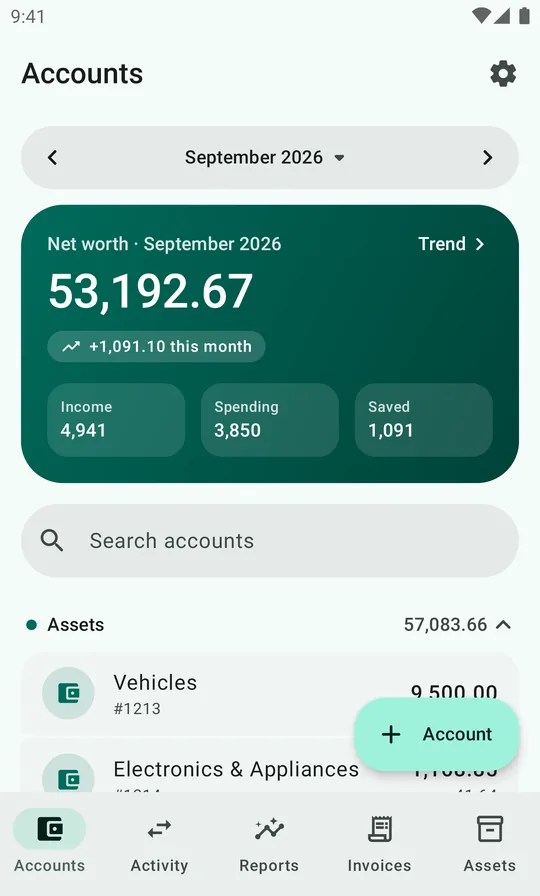
The top card shows your net worth at the end of the selected month (everything you own minus everything you owe) and how much it changed during the month. Below it:
- Income: the month's revenue.
- Spending: the month's expenses.
- Saved: income minus spending.
Use the arrows or tap the month to look at another month. Trend in the corner of the card opens the net worth report: how your net worth developed month by month. Under the card, every account is listed by type (assets, liabilities, equity, revenue, expenses) with its balance at the end of the month and the change during the month. Tap a group header to collapse it, or use Search accounts to find one by name or number.
A green check next to an account means it's reconciled. A warning sign means something changed after you reconciled it.
Create an account
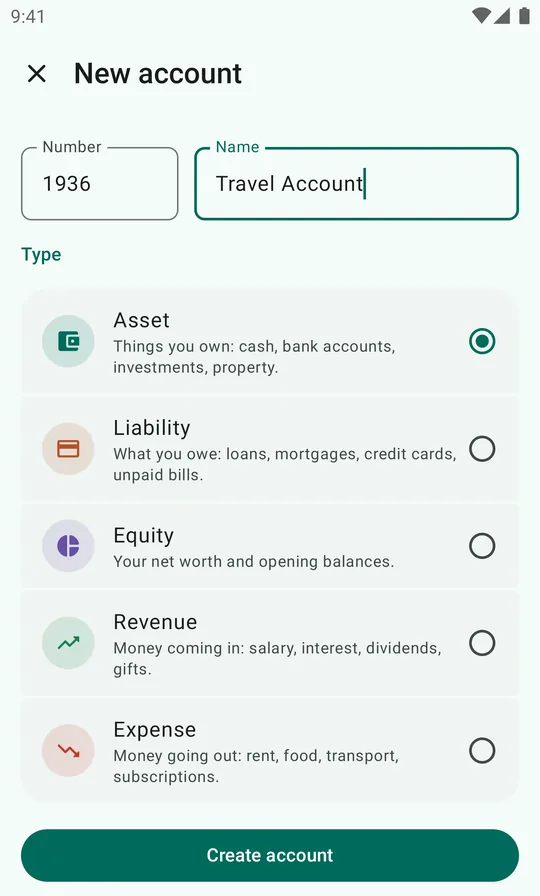
- On the Accounts tab, tap + Account.
- Enter a number and a name. The number decides where the account appears in the reports, so read how numbers work first.
- Pick the type. Each type has a one-line description: Asset is things you own, Liability what you owe, Equity your net worth and opening balances, Revenue money coming in and Expense money going out.
- Tap Create account.
In the example, a second bank account for travel money gets number 1936 and type Asset. Because it starts with 193, the reports put it in Cash & Bank next to the checking account.
You can also create an account while booking. In the account picker of any transaction, tap + New.
How account numbers work
Account numbers aren't just labels. The reports group accounts by the first digits of their numbers, the way company accounts are organized. The default personal plan uses these ranges:
| Numbers | Type | What goes there |
|---|---|---|
| 1210–1399 | Asset | Belongings, real estate and long-term holdings (car, home, art, shares in private companies) |
| 1600–1799 | Asset | Receivables and prepaid costs: money lent out, deposits, gift cards, tax refunds |
| 1910–1949 | Asset | Cash and bank accounts: cash, checking, savings, emergency fund |
| 1950–1979 | Asset | Investments and retirement savings, crypto |
| 2010 | Equity | Opening Balance / Net Worth |
| 2110–2899 | Liability | Tax owed, unpaid bills, loans and mortgages, credit cards |
| 3000–3999 | Revenue | Salary, benefits and pensions, interest, dividends, gifts, other income |
| 4000–4399 | Expense | Home: rent, utilities, furnishing, home services |
| 5000–5299 | Expense | Transport, travel and postage |
| 6100–6199 | Expense | Food, drink and household supplies |
| 7100–7699 | Expense | Media, gifts, clothing, kids, pets, sports, entertainment and hobbies |
| 8100–8999 | Expense | Family and education, interest and bank fees, health, insurance, depreciation and taxes |
When you add an account, give it a free number inside the range it belongs to and it joins the right group automatically. A new streaming service goes in the 71xx range under Media & Communication; a second credit card goes next to 2810 under Credit Cards.
If you'd rather organize things differently, the groups and their number prefixes can be changed under Settings → Reports. See Report settings.
Read an account's ledger
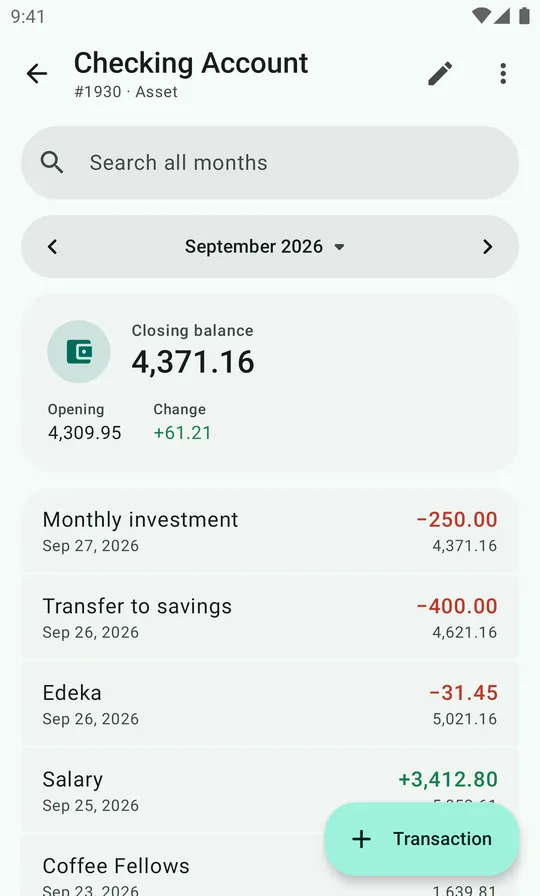
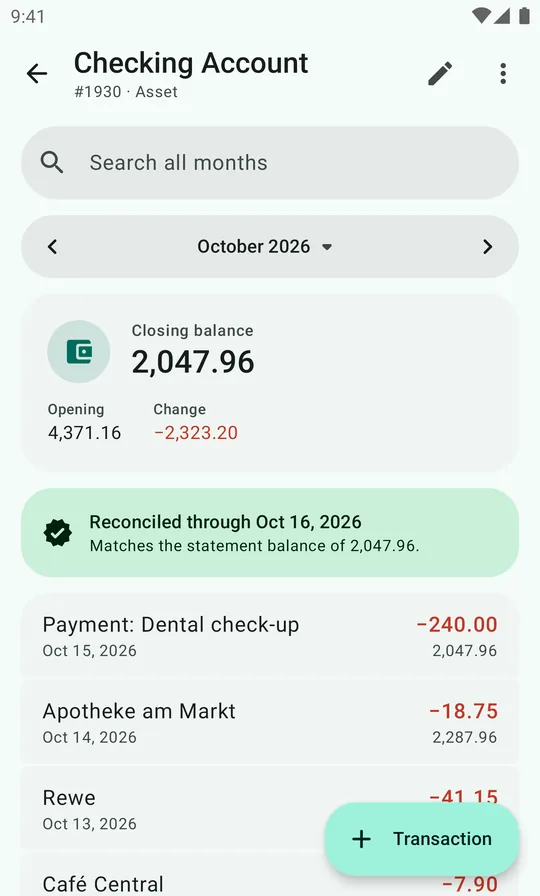
Tap an account to open its ledger: every transaction that touched the account in the selected month.
- The summary card shows the opening balance at the start of the month, the change during the month, and the closing balance.
- Each row shows the transaction title, date and amount, with the running balance underneath. Money into an asset account is green, money out is red.
- Search all months finds a transaction on this account in any month.
- + Transaction starts a new transaction with this account and month already filled in.
- The pencil edits the account. The ⋮ menu has Import bank statement…, Reconcile with statement… and Delete account.
Amounts are shown from the account's own point of view. On a loan, the balance is what you owe, and a repayment shows as a minus because the debt went down. On an expense account, a purchase shows as a plus because the cost went up.
Reconcile with a bank statement
Reconciling means checking that the app's balance for an account matches the bank's balance on a given date. Once they match, you know everything up to that date is booked, and the app keeps an eye on it for you.
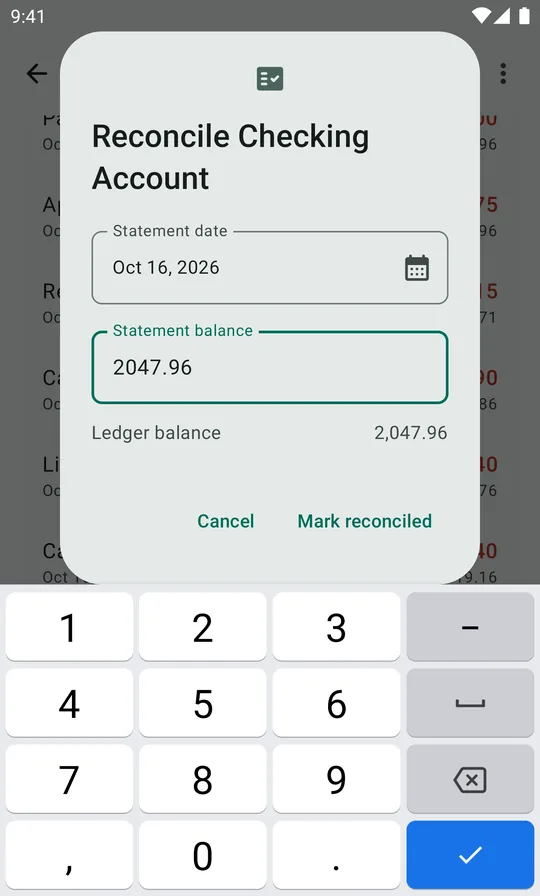
- Open the account and choose ⋮ → Reconcile with statement…
- Enter the statement date and the statement balance from your bank.
- The dialog shows the ledger balance on that date and the difference.
- If there's no difference, tap Mark reconciled.
If there is a difference, look for missing or mistyped transactions on or before that date. Importing the statement is the fastest way, because it lists transactions the bank doesn't have. If you can't find it, Post adjustment… books the difference against an account you choose and reconciles the account.
The ledger then shows Reconciled through the date in green. If a transaction on or before that date is later added, changed or deleted, the banner turns into a warning that shows the new balance and the difference. The account also gets a warning sign on the Accounts tab. ⋮ → Clear reconciliation removes the mark.
Rename or delete an account
Open the account and tap the pencil to change its number, name or type. Changes apply to all its transactions straight away, including in earlier months.
⋮ → Delete account removes an account. An account that still has transactions can't be deleted: move its transactions to another account, or delete them, first. You can always undo a delete from the message at the bottom of the screen.