 DoubleEntry
Guide · 4
Importing bank statements
Download a statement from your online bank, import it into the matching account, and DoubleEntry books it. Rows you've already booked are skipped, new rows are booked like last time, and anything that doesn't match the bank is flagged.
1. Export a statement from your bank
In your online bank, open the account and look for Export, Download or Account statement. Choose CSV (sometimes called "Excel/CSV" or "text file") or Excel (.xlsx), and a period, such as last month. Save the file on your phone, or move it there.
Banks disagree on almost everything in these files, and DoubleEntry handles it:
- separators: comma, semicolon, tab or pipe,
- text encodings: UTF-8, UTF-16 and the older Windows encoding several Nordic banks still use,
- column names in English, German and the Nordic languages, extra lines above the table, and in other languages columns are recognized by their content,
- date formats like
2026-10-15,15.10.2026,10/15/2026or15 Oct 2026, - decimal commas or points, thousands separators, and amounts split into "money out" and "money in" columns.
The demo statement used on this page looks like this:
Booking date;Text;Amount;Balance
01.10.2026;Rent;-1150,00;3221,16
02.10.2026;Public transport pass;-58,00;3163,16
…
14.10.2026;Apotheke am Markt;-18,75;2287,96
15.10.2026;Dental check-up;-240,00;2047,96
2. Start the import
- On the Accounts tab, open the account the statement belongs to, here Checking Account.
- Tap ⋮ in the top corner and choose Import bank statement…
- Pick the file.
Nothing is booked yet. The next screen shows what DoubleEntry found and what it plans to do.
3. Check the summary and warnings
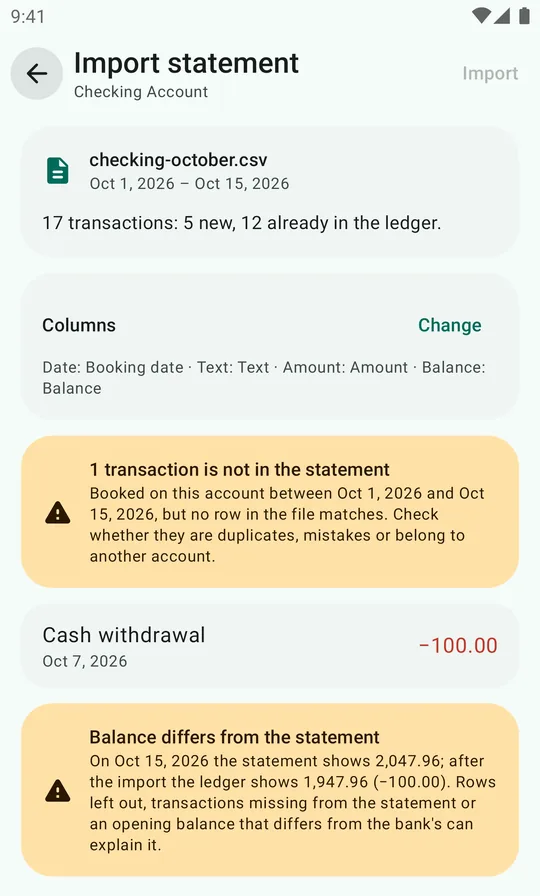
At the top you see the file name, the period it covers and a count. In the example: 17 transactions: 5 new, 12 already in the ledger. Twelve rows were booked before, by hand or by an earlier import, and are skipped.
The Columns card shows which column was read as date, text, amount and balance. It's almost always right; if not, see When the columns are wrong.
Then come the warnings, the part that makes your ledger trustworthy:
- Transactions not in the statement. Booked on this account during the statement's period, but no row in the file matches. Here, a Cash withdrawal of 100.00 on 7 October was booked twice by mistake. Tap it to open and delete it.
- Balance differs from the statement. If the file has a balance column, DoubleEntry compares the bank's closing balance with what the ledger will show after the import. Here, 2,047.96 against 1,947.96: exactly the duplicate withdrawal.
When everything is in order, you see Balance matches the statement instead.
4. Review the new rows
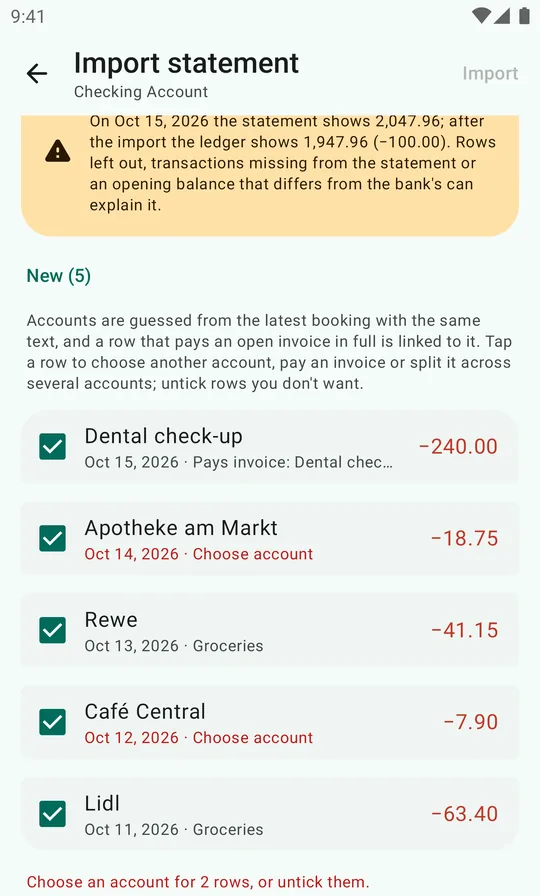
Each new row shows the date, the bank's text, the amount and the account it'll be booked against:
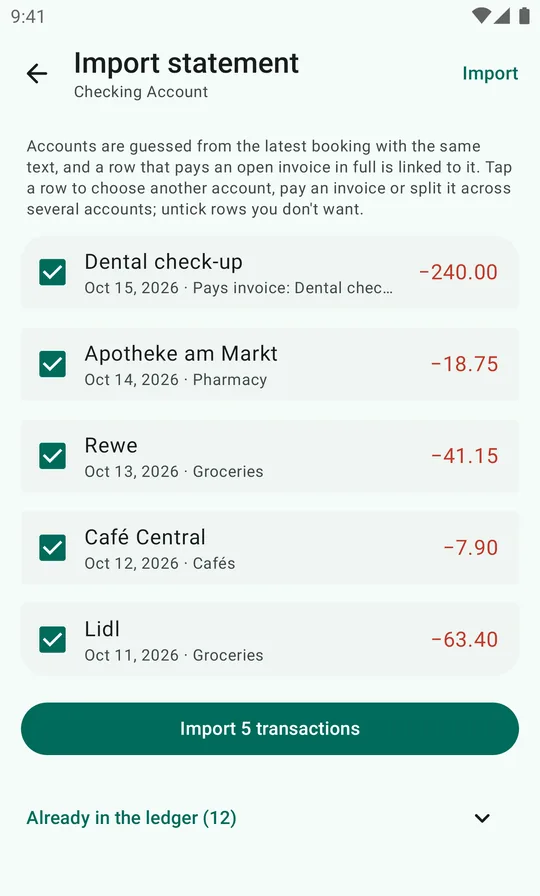
- Booked like last time. DoubleEntry looks for the latest transaction with the same text and copies its accounts. Lidl and Rewe go to Groceries because that's where they went before.
- Pays an invoice. A row that pays an open invoice in full is linked to it. Dental check-up settles the dentist's bill instead of being booked as a new cost, because the cost was already booked when the bill came. See Invoices.
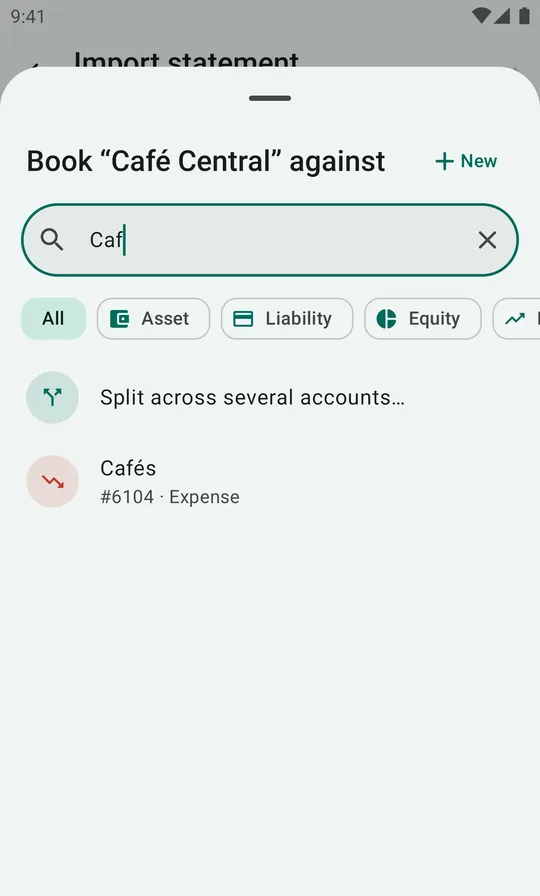
- Choose account (in red). Text the app hasn't seen before. Tap the row and pick an account. Next time, the same text is booked automatically.
Tap any row to change its account, link it to an invoice (Pay an invoice…) or split it across several accounts (Split across several accounts…), for example a supermarket receipt that was half groceries, half household supplies.
Untick a row to leave it out. With many unknown rows, Choose account for N rows… books them all against one account in one go.
5. Import
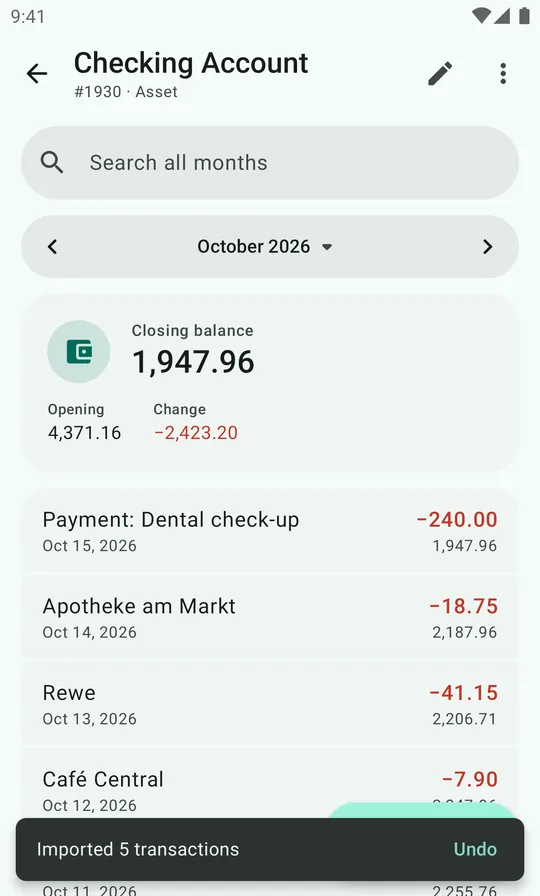
When every ticked row has an account, tap Import 5 transactions. You're taken back to the account's ledger with the new transactions in place, and a message with Undo in case you want to take it all back.
Finally, fix what the warnings pointed out. Here, deleting the duplicate cash withdrawal brings the ledger to 2,047.96, the same as the bank. Now is a good moment to reconcile the account: ⋮ → Reconcile with statement…, enter the bank's balance, and Mark reconciled.
When the columns are wrong
Tap Change on the Columns card to choose them yourself:
| Date | The booking or transaction date. |
| Text | The description the bank shows, used to recognize the row next time. |
| Amount | One column with negative amounts for money out. Or turn on Separate columns for money out and in and pick Money out and Money in. |
| Balance (optional) | The running balance after each row. Used for the balance check. |
| Reverse signs | For statements that show payments as positive amounts, like many credit cards. |
Rows without a date or amount, such as pending card purchases, are skipped, and the summary says how many.
How matching works
A row in the file and a transaction in the ledger are a match when the transaction changes the account by the same amount within four days of the bank's date. The tolerance covers the gap between when you pay and when the bank books it, and weekends. Each transaction matches only one row, so two identical coffees on the same day need two transactions.
That means you can safely:
- import overlapping statements: rows already in the ledger are skipped,
- book by hand first and import later: your transaction is matched, not duplicated,
- import every account: a transfer from checking to savings matches in both statements, because it's one transaction that touches both accounts.
Credit cards: import the card statement into the credit card account (a liability). Purchases are booked as costs on the card, and the monthly payment from checking matches in both the checking and the card statement.