 DoubleEntry
Guide · 3
Transactions
A transaction records money moving between accounts. Most of yours will come from bank statement imports, but it's worth knowing how to book one by hand.
Book a new transaction
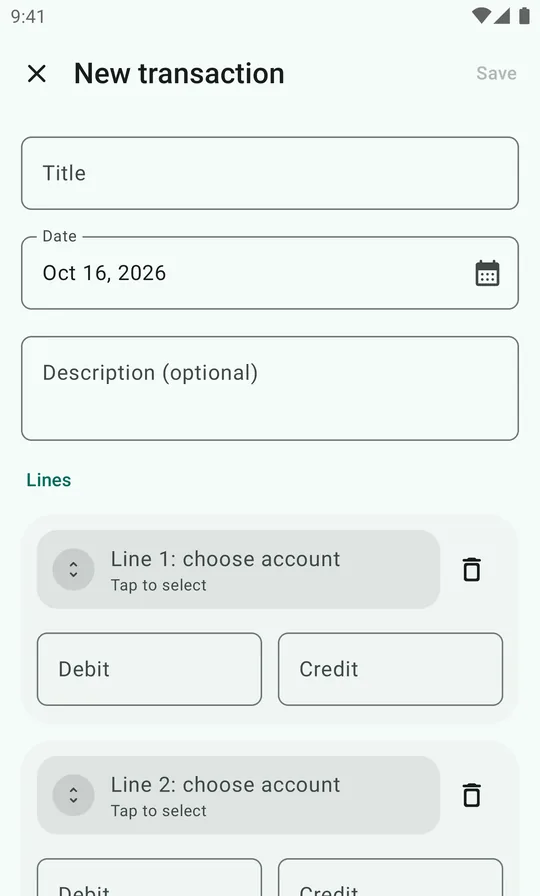
- Tap + Transaction on the Activity tab, or in an account's ledger to start with that account filled in.
- Enter a title, such as the shop or what it was for, and check the date. A description is optional.
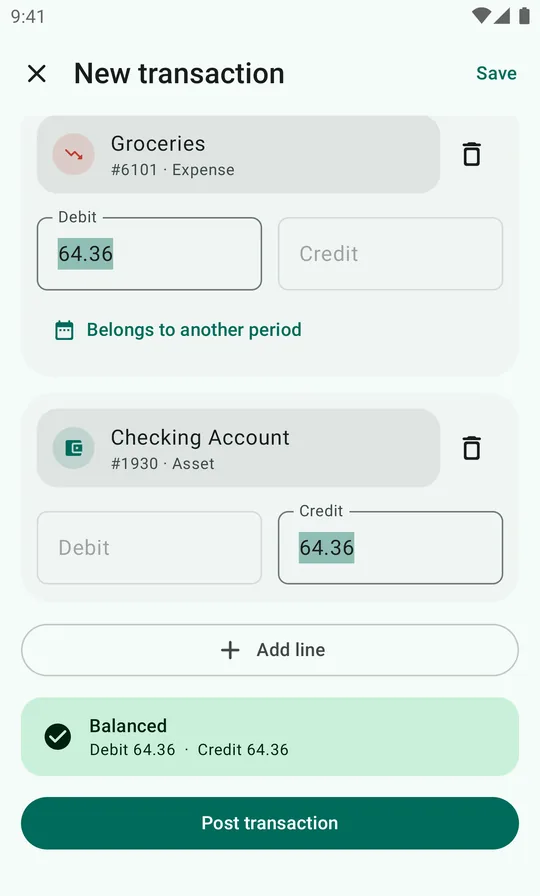
- Under Lines, tap Line 1: choose account and pick an account. Enter the amount under Debit or Credit.
- Do the same for line 2. Need more? Tap Add line.
- When the summary at the bottom says Balanced, tap Post transaction (or Save at the top).
Auto-balancing: when all lines but one have an amount, tapping the last line's empty debit or credit field fills in the amount that makes the transaction balance.
Until it balances, the summary says how far off it is, for example Debits exceed credits by 12.00, and the transaction can't be saved. Each line needs an account and either a debit or a credit, never both.
Let earlier transactions do the work
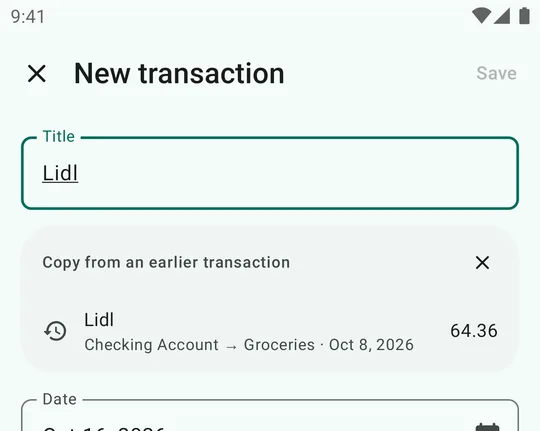
As you type a title, DoubleEntry looks for earlier transactions with a similar title and shows them under Copy from an earlier transaction. Tap one and its accounts and amounts are copied into the new transaction. Change the amount if needed and post.
After a few weeks, booking by hand is mostly: type the shop name, tap the suggestion, fix the amount.
Choosing accounts
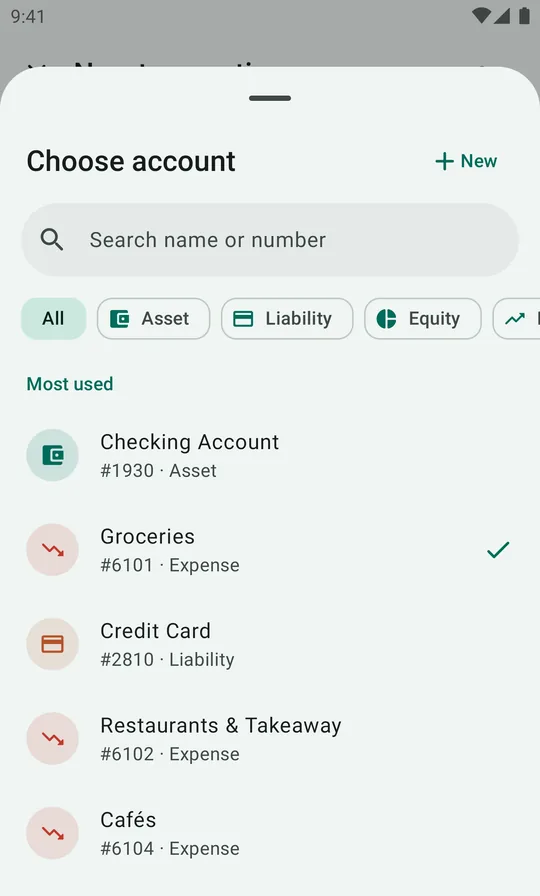
Tapping a line opens the account picker:
- Most used lists the accounts you book most often, so the usual ones are a tap away.
- Search name or number finds any account. Typing
61finds everything in the food range; typingfuelfinds Fuel. - The chips filter by type: Asset, Liability, Equity, Revenue, Expense.
- + New creates an account without leaving the transaction.
View, edit, duplicate or delete
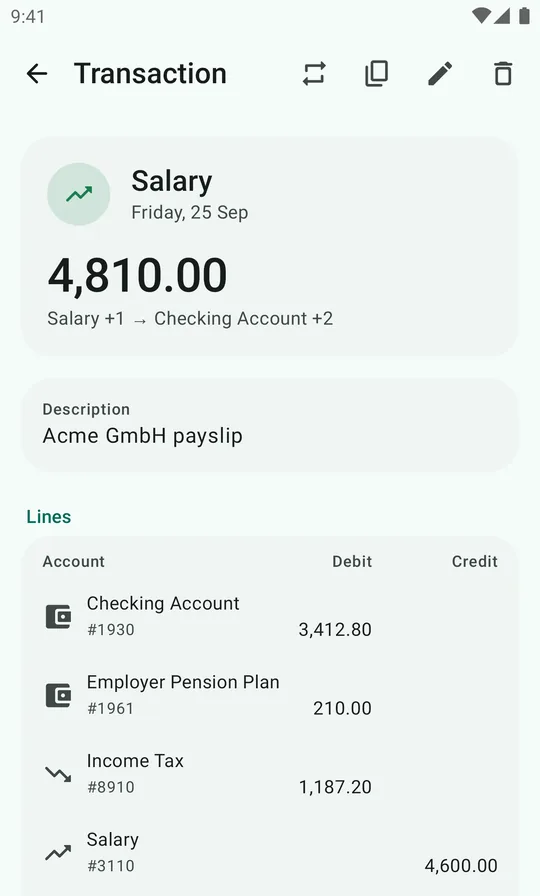
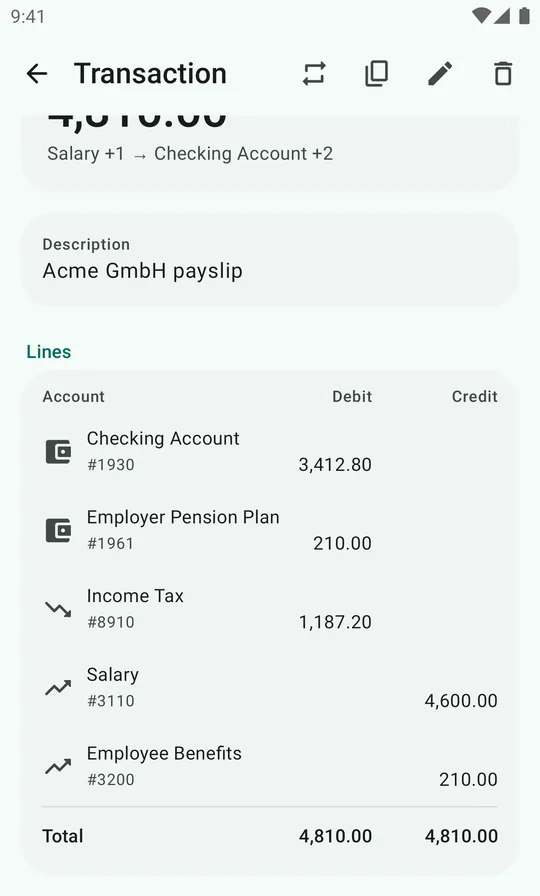
Tap any transaction to open it. You'll see the total, a short summary of where the money went from and to, the description and every line with its debit or credit. Tap an account line to jump to that account's ledger.
The buttons at the top:
- Make recurring turns it into a recurring transaction.
- Duplicate opens a copy as a new transaction, handy for something that happens again with a different date or amount.
- Edit changes it. If the change touches a reconciled period, the editor warns you first.
- Delete removes it, with Undo in the message at the bottom.
The Activity tab lists the month's transactions by day. Its search, Search all transactions, looks through every month.
Recipes for everyday transactions
Not sure which side is which? Money flows from the credited account to the debited account. Account numbers are from the default plan.
| What happened | Debit | Credit |
|---|---|---|
| Paid for groceries with a debit card | 6101 Groceries | 1930 Checking Account |
| Paid for dinner with a credit card | 6102 Restaurants & Takeaway | 2810 Credit Card |
| Paid the credit card bill | 2810 Credit Card | 1930 Checking Account |
| Got paid (net pay, tax withheld) | 1930 Checking Account (net) 8910 Income Tax (withheld) | 3110 Salary (gross) |
| Moved money to savings | 1940 Savings Account | 1930 Checking Account |
| Withdrew cash | 1910 Cash on Hand | 1930 Checking Account |
| Paid a loan instalment | 2530 Vehicle Loan (repayment) 8213 Vehicle Loan Interest | 1930 Checking Account |
| Took out a loan | 1930 Checking Account | 2540 Personal Loan |
| Received interest on savings | 1940 Savings Account | 3710 Interest Income |
| Received a dividend | 1950 Brokerage Account | 3730 Dividends |
| Investments rose in value | 1950 Brokerage Account | 3750 Investment Value Changes |
| Investments fell in value | 3750 Investment Value Changes | 1950 Brokerage Account |
| Lent money to a friend | 1670 Receivables (money lent out) | 1930 Checking Account |
| The friend paid you back | 1930 Checking Account | 1670 Receivables (money lent out) |
| Paid for someone else, to be repaid | 1680 Reimbursable Expenses | 1930 Checking Account |
| Bought something that lasts years | 1214 Electronics & Appliances | 2810 Credit Card |
| Got a refund for a return | 1930 Checking Account | 7310 Clothing & Shoes |
A refund is a credit to the expense account it was booked on, so the cost simply goes away. It isn't income.
For something that lasts years, add it under Assets as well so it's depreciated every month.
Costs that belong to another month
Paid your yearly home insurance in January? In a strict ledger, that cost belongs to all twelve months, not just January. On an expense or income line, tap Belongs to another period and choose the previous month, the next month, or a Date range…. DoubleEntry then moves the cost to those months with automatic postings through a prepaid or accrued account, split by days.
With the default plan this works straight away: it uses 1700 Prepaid Expenses, 2420 Accrued Expenses, 1710 Accrued Income and 2490 Income Received in Advance. If you built your own chart of accounts, choose the accounts to use under Settings → Bookkeeping → Cost periods first.
The same works on the lines of an invoice, for a bill that covers several months.