 DoubleEntry
Guide · 1
Getting started
Setting up takes about fifteen minutes: pick a chart of accounts, tell the app what you own and owe today, and from then on it's a few minutes a month.
Install the app
DoubleEntry runs on Android 8.0 or newer and is coming to Google Play. You don't need an account: open the app and start. Signing in, with your Google account, is only for the optional cloud backup.
Choose a chart of accounts
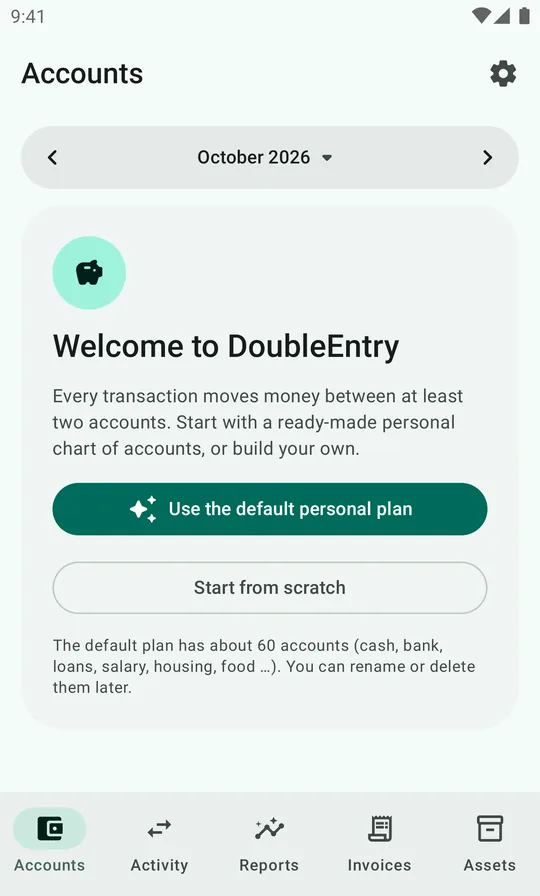
A chart of accounts is the list of accounts you book into: your bank accounts, your loans, and the categories of income and spending you want to follow. The first time you open the app it offers two ways to start:
- Use the default personal plan creates a complete chart for personal finance: cash and bank accounts, savings and investments, loans and credit cards, salary and benefits, and expense accounts for housing, food, transport, insurance, health and more. Report groups are set up to match.
- Start from scratch gives you an empty ledger, and you create the accounts you want.
We recommend the default plan. It's numbered so the reports group everything sensibly, and you can rename or delete any account later. Accounts that are never used don't clutter the reports.
Find your way around
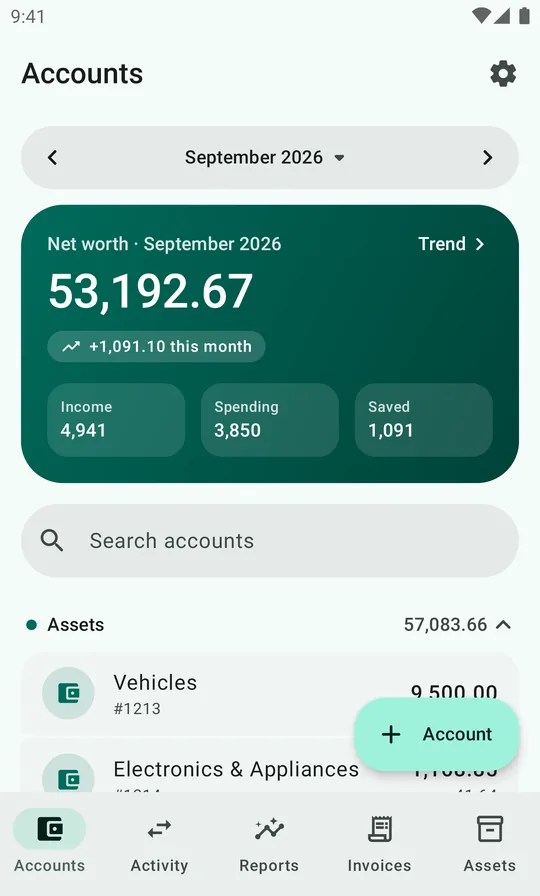
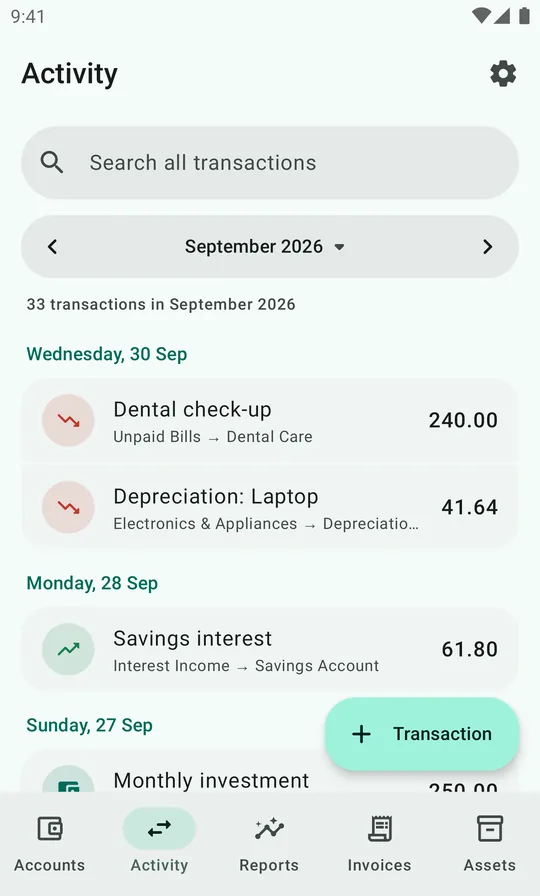
The tab bar at the bottom has five sections:
| Accounts | Net worth for the selected month, income, spending and how much you saved, and every account grouped by type. Tap an account to open its ledger, or Trend to see your net worth over time. |
| Activity | All transactions of the month, newest first, with a search that covers every month. |
| Reports | Balance sheet, net worth, income statement, cash flow and cost trends. |
| Invoices | Bills you've received, unpaid and paid. |
| Assets | Things you own that lose value over time, like a car or a laptop. |
The gear icon in the top corner opens Settings from any tab.
Record your opening balances
Before you book everyday transactions, tell DoubleEntry where you stand on the day you start. You do that with one opening balance transaction. Pick a start date, ideally the first of a month or of the year, and gather the balances on the day before:
- every bank, savings and investment account (from your online bank),
- cash in your wallet,
- loans and credit card debt,
- optionally, big things you own, such as a car, at a realistic value.
Then go to Activity, tap + Transaction and enter one line per account: debit each asset with its balance, credit each liability with what you owe. The difference is your net worth: put it on a final line, a credit to 2010 Opening Balance / Net Worth. The demo household started 2026 like this:
| Account | Debit | Credit |
|---|---|---|
| 1930 Checking Account | 2,840.00 | |
| 1940 Savings Account | 9,600.00 | |
| 1950 Brokerage Account | 7,350.00 | |
| 1961 Employer Pension Plan | 18,200.00 | |
| 1910 Cash on Hand | 120.00 | |
| 1213 Vehicles | 9,500.00 | |
| 2530 Vehicle Loan | 6,200.00 | |
| 2810 Credit Card | 412.60 | |
| 2010 Opening Balance / Net Worth | 40,997.40 | |
| Total | 47,610.00 | 47,610.00 |
Tip: enter the net worth line last. When every other line has an amount, tapping the empty Credit field fills in the exact difference that balances the transaction.
You don't have to add every account on day one. If you forget one, edit the opening balance transaction later; the reports follow along.
A monthly routine
Once your opening balances are in, keeping the books is a short routine. Most people do it once a month, or once a week if they like it tidy.
- Import your bank statements. Download the month's statement from your online bank for each account and import it. Almost every row is booked automatically from your earlier choices.
- Book what the bank doesn't know about. Cash purchases, money a friend owes you, or a bill you've received but not yet paid. Transactions shows the common cases.
- Reconcile. Check each account's balance against the bank's and mark it reconciled. If a transaction is later changed, the app warns you. See Reconciling.
- Look at the reports. Compare the month with the one before: where did the money go, how much did you keep, how did your net worth change? See Reading the reports.
Regular things like rent, salary and subscriptions can post themselves. Set them up once as recurring transactions.
Settings worth knowing
| Section | What's there |
|---|---|
| Appearance | Light, dark or system theme. Wallpaper colors uses Material You colors instead of the DoubleEntry green. |
| Cloud backup & sync | Optional, free during early access: every change backed up automatically and the same ledger on all your devices. Ledgers & sharing shares a ledger with someone else. See cloud backup. |
| Automation | Recurring transactions and Invoice reminders, a morning notification for bills that are due soon. |
| Security | App lock asks for your fingerprint or screen lock when the app opens, and hides the amount on the home-screen widget. |
| Reports | Which accounts belong to which group in the balance sheet, income statement and cash flow. |
| Bookkeeping | Invoice defaults, and the accounts used to spread costs and income over several months. |
| Data management | Full JSON backup and restore, CSV export of transactions and balances, Repair depreciation, and Delete all data. |
| Support | Report a problem and Ask a question or suggest a feature open the forms on GitHub, and Privacy policy shows what happens to your data. |
Make backups. Your ledger lives on your phone. Use Settings → Data management → Export to JSON now and then, and keep the file somewhere safe. Import from JSON restores it on any phone. Or turn on cloud backup and every change is backed up for you.