 DoubleEntry
Guide · 6
Invoices, assets & more
The tools that keep the books accurate with less typing: bills tracked until they're paid, automatic depreciation, transactions that post themselves, and backups, made by hand or automatically in the cloud, where you can also share your ledger.
Invoices
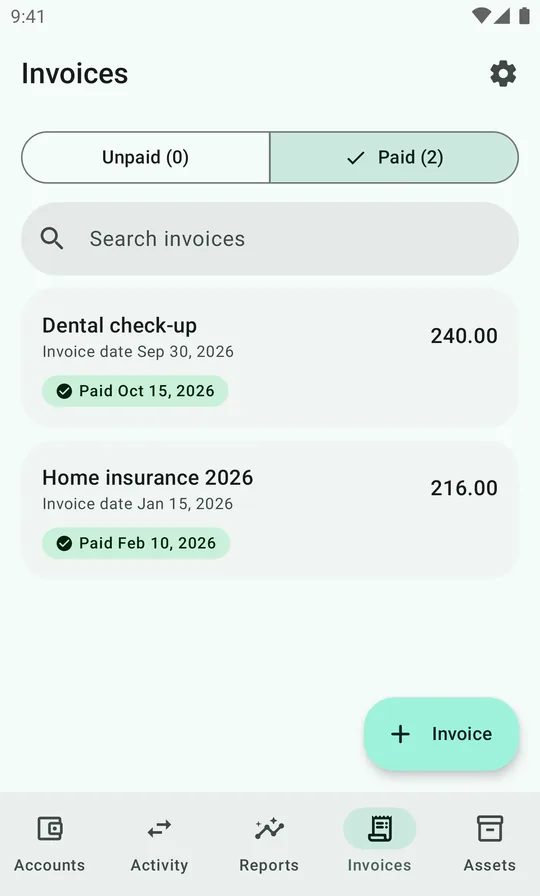
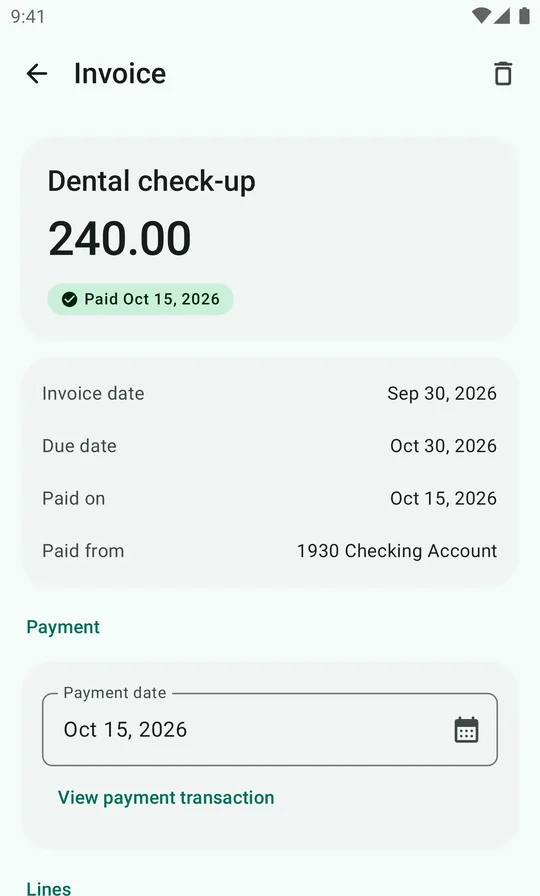
When a bill arrives, the cost belongs to now, even if you pay it in three weeks. An invoice in DoubleEntry books the cost when the bill arrives, keeps track of the due date, and settles the debt when you pay.
Add an invoice
- On the Invoices tab, tap + Invoice.
- Enter a title, the amount due, the invoice date and the due date. The Due in choices set the due date in one tap.
- Under Booking, debit the expense, for example 8520 Dental Care, and credit a liability such as 2440 Unpaid Bills.
- Tap Save invoice.
| Account | Debit | Credit |
|---|---|---|
| 8520 Dental Care | 240.00 | |
| 2440 Unpaid Bills | 240.00 |
A bill that covers several months, like a yearly insurance premium, can be spread over them: tap Belongs to another period on the expense line, as in a transaction.
Set a default credit account under Settings → Bookkeeping → Invoice defaults and every new invoice credits it automatically, so you only pick the expense. The same screen sets which accounts you usually pay from.
Pay an invoice
Unpaid invoices are listed with their status: Due in 5 days, Due today or Overdue by 2 days. Open one and choose the account you pay from:
- Leave the amount empty and tap Mark as paid… to pay everything that's left.
- Enter a smaller amount and tap Record instalment… to pay in parts. The invoice shows what's left.
The payment is a transaction from your bank account to Unpaid Bills. It reduces the debt, not your income statement: the cost was already booked.
Even easier: just import the bank statement. A row that pays an open invoice in full is linked to it automatically, and the invoice is marked paid.
Turn on Settings → Automation → Invoice reminders for a notification each morning about unpaid invoices that are due soon.
Assets and depreciation
A car, a sofa or a laptop is worth something on the day you buy it, and less every year after. Depreciation spreads that loss of value over the item's useful life, so your net worth stays realistic and the cost shows up in the months you use the item, not all at once.
- Book the purchase to an asset account, for example 1214 Electronics & Appliances (see the recipes).
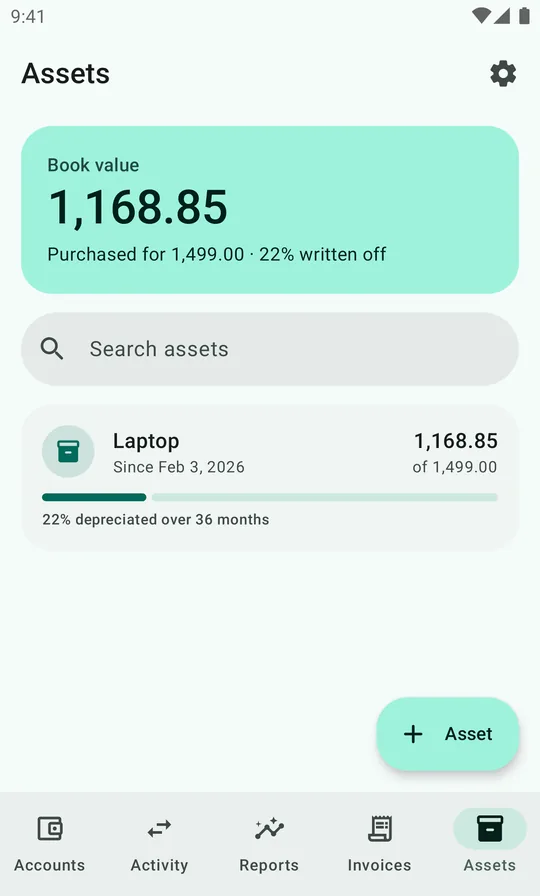
- On the Assets tab, tap + Asset.
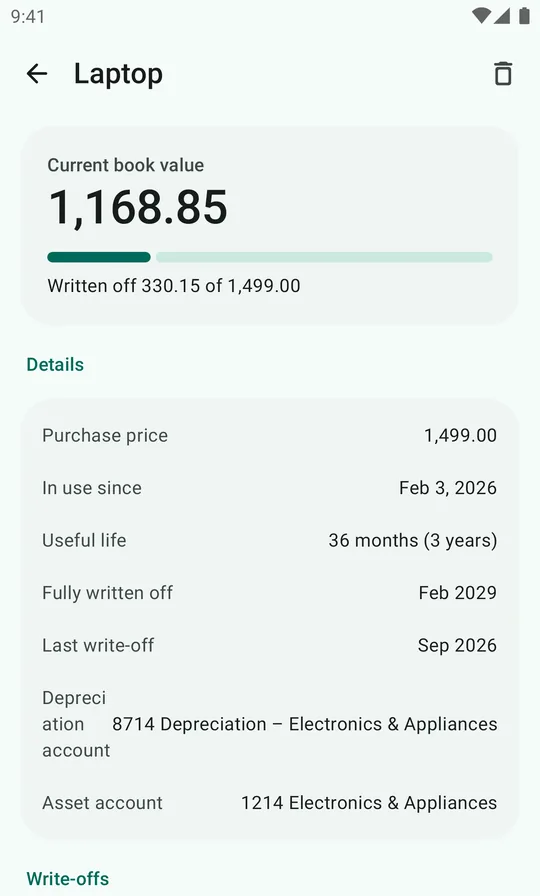
- Enter the name, purchase price, useful life (months) and in use since.
- Choose the depreciation account (debit), usually the matching 871x expense, and the asset account (credit) that holds the value.
- Check the Schedule preview and tap Save asset.
From then on DoubleEntry posts a write-off every month by itself. The first month is prorated by the purchase date. The demo laptop, 1,499.00 over 36 months, is written off by about 41.64 a month and has a book value of 1,168.85 in October 2026.
If write-offs ever go missing, for example after deleting transactions by mistake, Settings → Data management → Repair depreciation restores them.
Recurring transactions
Rent, salary, subscriptions and loan payments happen on schedule, so let them book themselves. Open a transaction and tap Make recurring, or go to Settings → Automation → Recurring transactions and tap + Recurring.
- Choose weekly, monthly, quarterly or yearly, a start date and, optionally, an end date.
- Set up the lines as in any transaction.
- Due transactions are posted automatically when the app opens. If you set the start date in the past, saving posts the missed ones right away.
- Paused stops posting for a while; dates passed meanwhile are posted when you resume. Stop recurring ends the schedule and keeps what it already posted.
Recurring or import? If you import your bank statements, you don't need recurring transactions for bank payments: the import books them like last time. Recurring transactions are most useful for things that don't show up on a statement you import, like an employer's pension contribution.
Backups and exports
Everything is under Settings → Data management:
| Export to JSON | A full backup file with all accounts, transactions, assets, invoices and settings. |
| Import from JSON | Replaces all data with a backup file, for example on a new phone. |
| Export transactions (CSV) | Every transaction line with date, account, debit and credit, for a spreadsheet. |
| Export balances (CSV) | Each account's balance as of today. |
| Repair depreciation | Restores missing or accidentally deleted write-offs. |
| Delete all data | Permanently removes accounts, transactions, assets and invoices. When you're signed in to cloud backup, it's called Delete all data (including cloud) and clears the cloud copy too. |
| Reset this device | Shown when you're signed in to cloud backup: signs out and clears the ledger from this phone, keeping it in the cloud. Handy before you give a phone away. |
Cloud backup and sync
A JSON file is only as recent as your last export. Cloud backup takes care of it for you, and it's free during early access (see pricing). Open Settings → Cloud backup & sync and sign in with your Google account. From then on:
- Every change is backed up. It's saved on your phone first and uploaded as soon as there's a connection, so changes made offline upload later.
- A new phone gets everything back. On a new or reset phone, tap Sign in to restore from the cloud and your accounts, transactions, invoices and assets download.
- All your devices stay up to date. A tablet signed in to the same account picks up changes when it's opened, and right away while it's open.
If the same item is changed on two devices before they've synced, the most recent change is kept, and a transaction is always kept whole with its own lines. The app tells you when a change made on this device was replaced.
Limits: each ledger can store up to 100 MB in the cloud, room for about 170,000 transactions. If it ever fills up, new changes stay on your phone and the app says Cloud storage is full. Delete account removes everything in the cloud; the ledger on your phone stays.
After early access, uploading to the cloud will need a subscription. The app will tell you before that changes, and restoring what's already backed up stays free.
Share a ledger
Keeping the household's books together? With cloud backup you can share your ledger, so you both see and book into the same accounts, transactions, invoices and assets.
- Open Settings → Cloud backup & sync → Ledgers & sharing and tap Invite someone.
- Tap Share to send the invite code, by message or mail. It works once and expires after a week.
- The other person installs DoubleEntry, signs in with their own Google account, and enters the code under Ledgers & sharing → Join a shared ledger.
Changes either of you make show up for the other as they sync. A ledger can have up to 20 members.
- A shared ledger opens in place of the member's own, which stays as it was. They switch between the two under Your ledgers.
- As the owner you can rename the ledger and remove members. A member can leave. Either way, what they entered stays in the ledger.
- Members see your email address, and you see theirs.
Widget, shortcuts and app lock
- Net worth widget. Add DoubleEntry's widget to your home screen to see your net worth at a glance. At two rows tall or more, it also shows the change over the last 12 months as a small chart.
- Shortcuts. Long-press the app icon to jump straight to a new transaction or a new invoice.
- App lock. Settings → Security → App lock asks for your fingerprint or screen lock when the app opens, and hides the amount on the widget.
- Themes. Light, dark or follow the system, and optional Material You colors from your wallpaper.